Zero Manual Entry: How to Stop Retyping Data Between Your Phones, CRM and Shop Management System
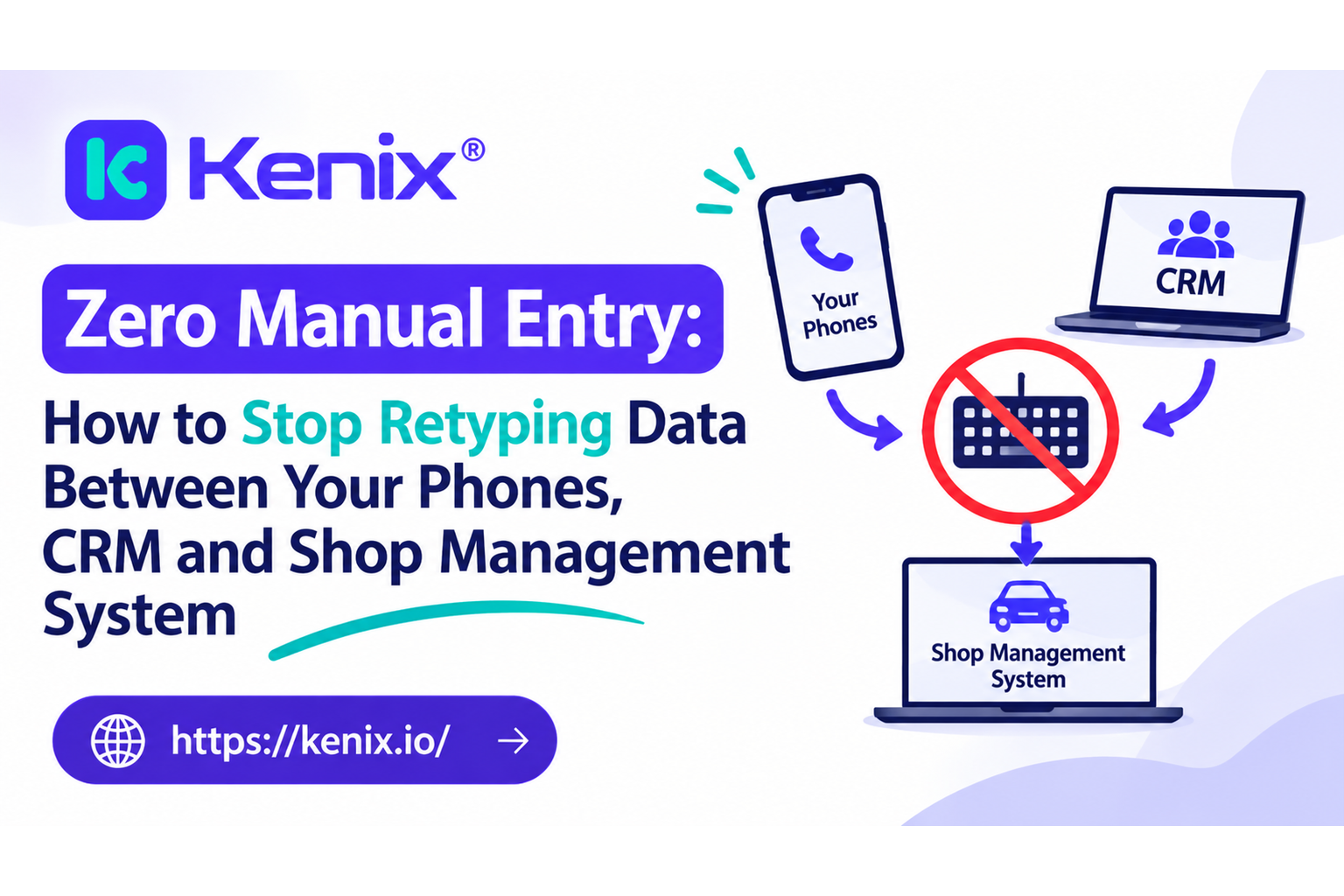
“Zero manual entry” means that routine customer data, such as a call, a text, an appointment or an invoice, reaches your CRM by an automatic sync from the system that already holds it, so nobody retypes it. It is achievable for most of the data your front desk handles today. It does not mean no human ever touches a record; a service advisor’s notes about a diagnosis will always be written by a person. This guide shows where shops retype data, what an automatic sync actually does, and how to check it before you commit.
Where shops retype data today
Most double entry happens at the handoffs between tools: the phone, the texting app, the scheduler and the shop management system (SMS). Each handoff needs a person to look at one screen and type into another. The cost is not only the minutes. Every retyped field is a chance for a typo, a duplicate customer or a note that never got written.
| Where it happens | What gets retyped | What should happen instead |
|---|---|---|
| A call ends | Who called, what they wanted, whether they booked | The call is logged to the customer record with a recording, transcript and tag |
| A text conversation | The customer’s answer, copied into a note on the repair order | The thread sits on the same customer record as the calls and visits |
| A booking is made | Name, number, vehicle and concern, entered twice (calendar and SMS) | The appointment is created once and its status follows the job |
| An estimate goes out | Whether the customer approved, declined or went quiet | The estimate status is read from the SMS and drives the follow-up |
| An invoice is closed | Who to ask for a review, and when | The closed invoice triggers a review request without a manual list |
| A customer calls from a new number | A second customer record for the same person | The number is matched, or flagged for a merge, before a duplicate appears |
If you want a quick audit, ask your advisors for two days to tally every time they type something they have already typed somewhere else. The total shows you where to start.
What “zero manual entry” means technically
Under the hood, zero manual entry is an API connection or a data sync between your systems. An API (application programming interface) lets one program ask another for records, and a sync keeps the two copies matching without a person in the middle. “We integrate with your shop software” can mean very different things, so ask which of these four levels a vendor actually offers. (This scale is a practical way to compare, not an industry standard.)
| Level | What it does | What the shop still does by hand |
|---|---|---|
| 0. Manual | Staff retype or export and import files | Everything |
| 1. One-way read | The CRM pulls customer, vehicle, repair order and appointment data from the SMS on a schedule | Anything that originates in the CRM, such as a call note, is entered in the SMS too |
| 2. Two-way sync | Changes made in either system appear in the other | Resolving the odd conflict |
| 3. Event-driven | A change in the SMS (an estimate sent, an invoice closed) triggers an action in the CRM within moments | Very little |
Three questions separate a real integration from a logo on a slide:
- Which direction does the data move? Reading from the SMS is common. Writing back into it depends on what the SMS allows and how the vendor has been set up, so ask for it per system.
- How often does it update? A sync that runs overnight can’t help with a customer who is on the phone right now.
- Which fields move? “Customer data” is vague. Ask for the list: customer, vehicle, repair order status, estimate approval, appointment status, invoice history, inspection results.
Here is what Kenix’s integrations page says it does: it connects via API or data sync and reads the data your shop management system already produces, including customer records, repair orders, appointment statuses, invoice history and digital vehicle inspection signals. Then it uses that data to trigger follow-ups, reminders and recovery workflows. The page lists Tekmetric, Shopmonkey, Mitchell 1, NAPA TRACS, Shop-Ware, RO Writer, Protractor, Shop Boss, Bay-Master and Tire Guru, among others, and says it will build a connection for any system on request. It describes the flow as inbound, so if write-back into your SMS matters to you, confirm the details for your system before you sign.
From call to CRM: logging, transcripts and tags without typing
The phone is where most manual entry starts, because every call produces information and none of it goes anywhere unless someone writes it down. A connected phone system fixes that in four steps that happen on their own:
- The call is logged against a person. The number is matched to a customer record, so the call appears on a timeline next to their visits, texts and estimates. Kenix’s VoIP system states that every call is recorded, transcribed and logged automatically, and calls link to the contact profile with conversation history, appointment data and authorisation records.
- The recording and transcript are attached. Instead of a note that says “asked about brakes”, the record holds the conversation, searchable by contact or time frame.
- The call is tagged. Kenix’s page says calls are tagged as new leads, active customers, vendors or comeback repairs, and that call intelligence classifies call type, sentiment and opportunity without manual input. A tag is what lets a report separate a price shopper from a customer waiting on an approval.
- A missed call creates its own follow-up. A missed call triggers a text and a callback task that is tracked until someone reaches the customer, so the miss never depends on someone remembering.
The test of any call-logging setup is simple. Take the last 10 calls and look at each customer record. If you can see the call, what was said, how it was tagged and what happened next without opening another app, the sync is doing its job. If any of them has just a phone number and a duration, the logging is partial.
The same rule applies to texts. When customer messages live on the same record as calls, an advisor opening the record sees one conversation instead of three. Two-way messaging on the CRM is how that stays true.
The full data flow, from first ring to review request
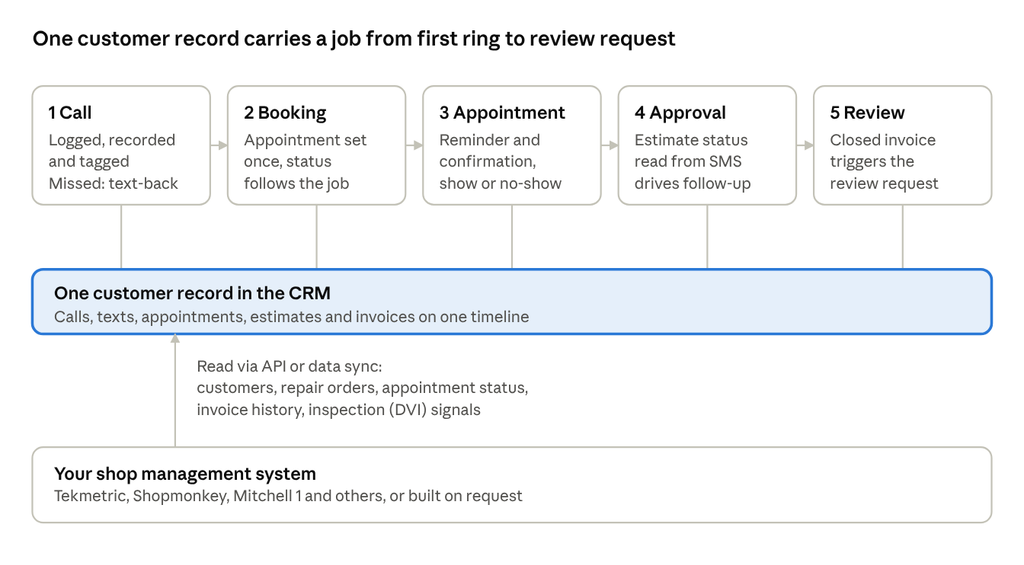
data flow from first ring to review request · 5 stages, 1 record, 1 sync
The five stages on top are what your customer experiences. The record underneath is where Kenix keeps the data for each one, and the shop management system at the bottom stays the source of truth for repair orders and invoices. The arrow shows the direction the Kenix integrations page describes: data is read from your system into the CRM, and the stage on the right is triggered by what the system already knows about the job.
Appointment to repair order, and invoice to review
Two flows cause the most retyping once the phone is handled. Both work the same way: a status in your shop management system changes, and the CRM acts on it instead of waiting for someone to notice.
Appointment to repair order. A booking should be entered once. After that, the customer’s status (booked, confirmed, arrived, no-show) should follow the job without anyone updating a second system. That makes reminders and confirmations run from live data, and it lets a no-show trigger appointment recovery instead of disappearing into a calendar. To test it, book a customer, mark them arrived in your SMS, and check how long the CRM takes to show that change.
Estimate to approval. When an estimate is sent and the customer goes quiet, the status in the SMS is what should start the follow-up. Kenix says it reads repair order and estimate data from your system, which is what approval recovery depends on. The manual alternative is an advisor scanning a list of open estimates every afternoon.
Invoice to review. Closing the invoice is the trigger for a review request. Done by hand, someone exports a list of paid customers and sends links, usually when there’s time, which means rarely. Done through a sync, the request goes to the customer while the visit is fresh, and customers who report a bad experience can be routed to the shop before they post publicly.
For each flow, run the same check: do the thing in your SMS, wait, then look in the CRM. If you have to do anything else for the CRM to know, that step is still manual.
Data accuracy and duplicate records
Automating entry doesn’t fix messy data; it moves the mess faster. Duplicates and wrong matches are the usual way a sync goes wrong, so check them before you trust it.
The common causes are ordinary:
- Shared or changed phone numbers. A couple who share a number, a fleet manager who calls about ten vehicles, or a customer who got a new mobile all break the idea that one number means one person.
- Spelling variants. “Mike Stevens” and “Michael Stephens” can be the same customer in one system and two in another.
- Vehicles attached to the wrong person. A second car added under a new name leaves two records for one household.
- Old records. Customers entered years ago with a typo carry that error into every new system.
Four questions to put to any integration:
- How does it match a customer? Phone number alone is weak. Better systems use the number plus a second signal such as a name or vehicle, and flag a doubtful match instead of guessing.
- Which system wins in a conflict? If a phone number differs between the SMS and the CRM, you need a stated rule. The usual answer is that the SMS stays the source of truth for repair orders and invoices.
- Can duplicates be merged, and does the merge keep call and text history? A merge that drops the timeline defeats the purpose.
- Is there an audit trail? You should be able to see where a field came from and when it changed.
A ten-minute accuracy check once the connection is live: pull 20 recent customers from your SMS and find each one in the CRM. Count how many appear once, with the right vehicle and the right history. If one in 20 doesn’t, ask the vendor to show you why before you scale up. It’s also worth cleaning the worst duplicates in your SMS first, because a connection will faithfully copy them.
Setup checklist for your shop management system
The steps are the same for Tekmetric, Shopmonkey, Mitchell 1, NAPA TRACS, Shop-Ware or any other system; what changes is what each one allows. Work through this list with the vendor and tick each item only after you’ve seen it happen on your own data.
Before you connect
- ☐ Name the system and version, and ask the vendor to confirm it is a supported integration, not a custom build
- ☐ Ask who needs to authorise access on your side (usually the shop owner or admin account)
- ☐ Clean up the worst duplicate customers in your SMS
- ☐ Decide which fields you need synced: customer, vehicle, repair order status, estimate approval, appointment status, invoice history
- ☐ Ask whether the connection is read-only or can write back, for your system specifically
During setup
- ☐ Connect the account and run a first import; check the customer count against your SMS
- ☐ Make a test call from your own mobile and confirm it matches the right customer
- ☐ Create a test appointment and change its status in the SMS; time how long the CRM takes to show it
- ☐ Send a test estimate and confirm the approval status appears
After go-live
- ☐ Run the 20-record accuracy check from the section above
- ☐ Check one week of calls: how many are logged to a customer record versus an unknown number
- ☐ Review the first duplicates that appear and confirm how they are merged
- ☐ Agree who the vendor contact is if a sync stops
On timing, Kenix’s product pages say most shops are live within 48 hours, and its integrations page says integrations are included at no extra cost during the free pilot. The pages don’t state a separate timeline for custom integrations, so ask for one in writing for your system. If you’d like to see this on your own data, book a free missed-revenue audit or look at what each package includes on the pricing page.
Frequently asked questions
- What is zero manual entry in a CRM?
It means routine customer data, such as calls, texts, appointments, estimate status and invoices, reaches the CRM through an automatic API connection or data sync, so staff don’t retype it. It covers the data your systems already produce. It doesn’t remove the notes a person writes about a diagnosis or a conversation.
- Does Kenix write data back into my shop management system?
Kenix’s integrations page describes the data flow as inbound: Kenix reads the customer records, repair orders, appointment statuses, invoice history and inspection signals your system already produces. It doesn’t state a write-back into the shop management system. Whether any field can be written back depends on what your system allows, so ask for the answer for your specific system before you sign.
- How long does integration take?
Kenix’s product pages say most shops are live within 48 hours, and the integrations page says integrations are included at no extra cost during the free pilot. The pages don’t give a separate timeline for custom integrations, so ask for a date in writing if your system isn’t on the supported list.
- What data syncs from the shop management system to the CRM?
According to Kenix’s integrations page: customer records, repair orders, appointment statuses, invoice history and digital vehicle inspection (DVI) signals. The page names Tekmetric, Shopmonkey, Mitchell 1, NAPA TRACS, Shop-Ware, RO Writer, Protractor, Shop Boss, Bay-Master and Tire Guru, with others available on request.
See it on your own shop data
The best test of any integration is your own data. Book a free missed-revenue audit and we’ll show you how calls, appointments and estimates look once they flow into one record, or start with a $50 pilot on your live system.
Back to the previous article