
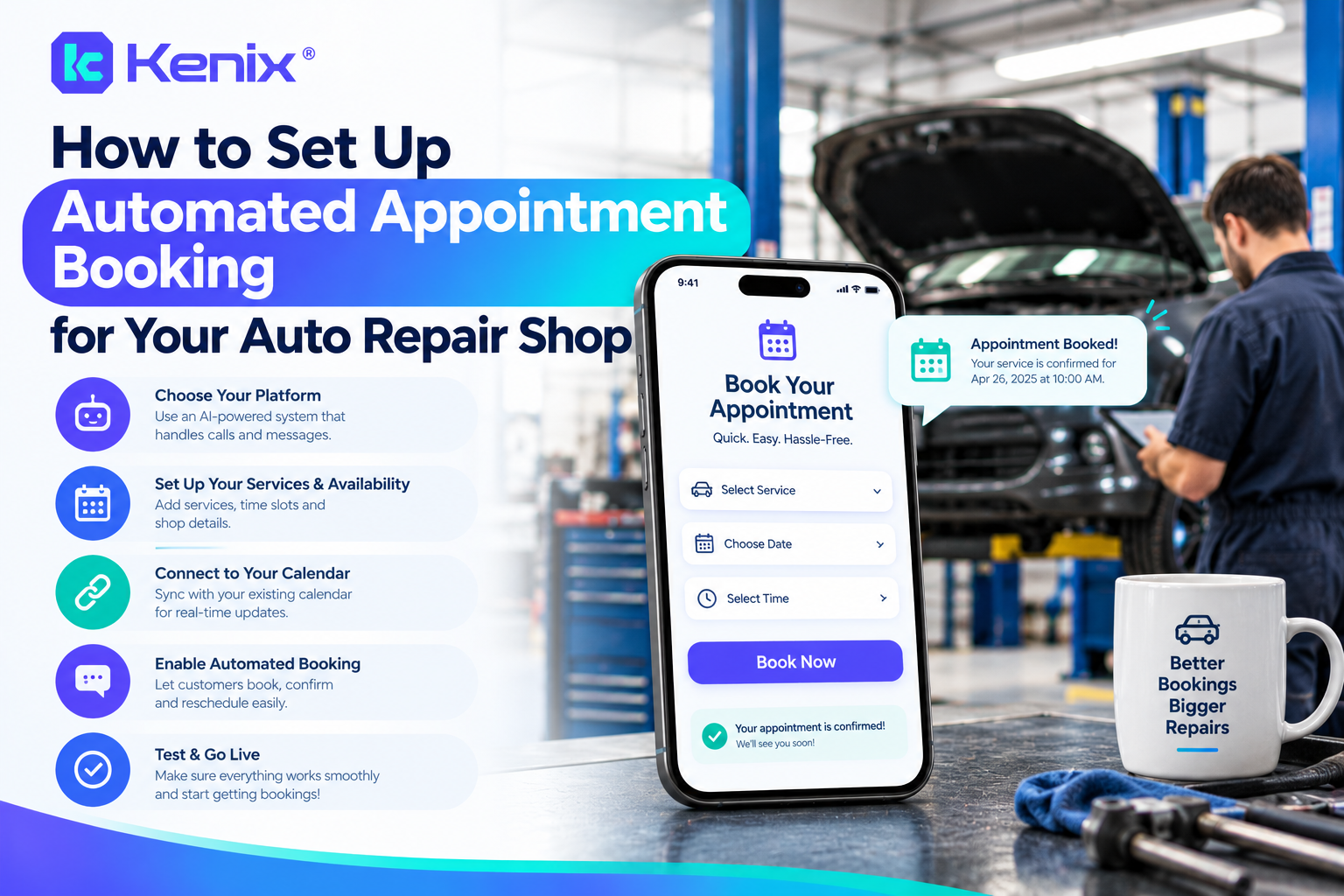
How to Set Up Automated Appointment Booking for Your Auto Repair Shop
Good, the research confirms the key statistics. I have everything needed to write the article now.
Service advisors in busy shops lose 2–3 hours every day to scheduling phone calls. That’s time that could generate $150–$300 per customer in upsells on the drive — gone to hold music and calendar juggling.
This guide walks you through how to set up automated appointment booking specifically for a repair shop: bay logic, technician routing, walk-in buffers, no-show reduction, and AI phone booking — the pieces every generic scheduling tool ignores.
Why Generic Calendar Tools Fail Repair Shops
Most shop owners who try Calendly, Acuity, or a basic Google Calendar booking link abandon them within 90 days. The reason isn’t that online scheduling doesn’t work — it’s that those tools were built for meetings and haircuts, not service bays.
Variable job duration is the first failure point. An oil change takes 30 minutes. A brake replacement takes 90 minutes. A timing belt job takes 240 minutes or more. Generic schedulers assign uniform time slots, which means that by 11 AM, one overrun diagnostic has pushed every appointment behind — and your techs spend the afternoon firefighting rather than turning wrenches.
Bay and lift constraints are completely invisible. A shop with four bays but only one alignment rack can’t safely double-book alignments and suspension work. A generic scheduler has no concept of equipment type. It sees open time on a tech’s calendar and offers the slot, regardless of whether the necessary lift is already occupied. The result is a double-booked rack and an angry customer at 9 AM.
Parts lead time creates what you might call “ghost appointments.” If a customer books a brake caliper replacement for Tuesday but the part won’t arrive until Thursday, that slot is worthless — and you won’t find out until the car is already on the lift. Generic tools have no connection to your parts pipeline. Repair-shop-specific systems can hold a slot contingent on parts confirmation, preventing the booking from going live until you actually have what you need.
Finally, technician skill matching goes unhandled. A master tech diagnostic bay shouldn’t fill up with oil changes. Generic tools assign whoever shows as “available,” while shop-specific systems route diagnostics to master techs and quick services to junior techs — protecting your highest-value capacity.
What Your Booking System Actually Needs to Sync With
Getting automated scheduling right is fundamentally an integration problem. The booking interface is the easy part. The hard part is making sure every confirmed appointment reflects real-world constraints — bays, techs, parts, and your existing shop management software (SMS).
Your SMS is the system of record. Appointments booked online must appear bidirectionally in your DMS or SMS — whether that’s Mitchell 1, Shop-Ware, Shopmonkey, or Tekion. Without a true sync, your advisors are managing two separate calendars, and double-bookings are a matter of when, not if.
Bays and lifts need to be named resources, not just background capacity. Configure each bay as a distinct entity in your scheduling platform: “Bay 1 – general service,” “Bay 2 – alignment/suspension,” “Bay 3 – quick lube.” Service types then map to specific bay types. When all alignment bays are booked, alignment jobs stop appearing as available in the booking flow — regardless of how much tech time shows as open.
Technician schedules, skills, and certifications need to be inputs, not afterthoughts. Map each tech by certification level: AC-certified, master diagnostic, general service. When a customer books an AC recharge or a complex ADAS diagnostic, the system only surfaces slots where the right tech and the right bay are simultaneously free.
The parts pipeline is the gap that every competing solution ignores entirely. For jobs requiring ordered parts — calipers, rotors, specific sensors — configure a staging slot that only allocates bay time after parts receipt is confirmed in your SMS. Don’t expose these jobs to online booking until parts availability is locked.
Kenix’s Calendar System handles this natively: it’s capacity-aware scheduling that fills bays, respects technician availability, and feeds into the same unified data layer as its VoIP, CRM, and AI tools — so a confirmed booking instantly updates every downstream system without manual entry.
Handling Walk-Ins Without Wrecking Your Schedule
Walk-ins are a permanent feature of the repair shop model. The mistake most shops make when they go live with online booking is treating it as an either/or: either you accept walk-ins or you book appointments, and you figure out the conflict at the counter.
The better approach is a buffer-slot strategy. Designate 2–3 time blocks per day per bay as internal hold slots that never appear in the online booking pool. These absorb same-day walk-ins and urgent drop-offs. If they go unfilled by mid-morning, release them to the online booking flow automatically — most shop-specific platforms support release rules that do this without any manual intervention.
Not all walk-ins are equal, and your triage process should reflect that. Quick jobs — wiper blades, bulb replacements, battery swaps — can absorb into buffer windows without disrupting scheduled work. Jobs requiring a lift for two or more hours are a different animal. Those customers should be offered a same-day appointment from the released buffer pool, or scheduled for the following morning before new buffer slots fill. Squeezing a 2-hour suspension job into a 45-minute gap creates a ripple that runs late across every appointment that follows.
The front desk needs a single live view showing booked appointments, walk-in buffer availability, and active bay status — not two systems open in adjacent browser tabs. This is exactly where integrating your scheduler with your SMS, or using an all-in-one platform, pays immediate dividends.
Configuring Automated Reminders That Actually Cut No-Shows
Auto shop no-show rates run 10–20%. According to the Auto Care Association, automated reminders cut that figure by 30–50%. For a shop running 40 appointments daily at a 15% no-show rate, recovering even half those empty slots is worth more than $400 per day — over $100,000 annually at average ticket prices.
The reminder sequence that consistently performs best is a three-touch cadence:
- 48-hour reminder (email or text): Early enough for the customer to reschedule, and early enough for you to fill the slot from your waitlist before it goes cold.
- 24-hour reminder (SMS): Include a one-tap reschedule or cancel link. Customers who can act in two taps do; customers who have to call back don’t.
- 2-hour “we’re ready for you” text: This single touch dramatically reduces same-day ghosting. Include the shop address, drop-off instructions, and a direct contact number.
Waitlist automation closes the loop on cancellations. When a cancellation comes in, the system should automatically text the next waitlisted customer for that bay type and time window. Manual waitlist calls are too slow and executed inconsistently — the slot is often half-filled or abandoned. Automated waitlist fill recovers 80–90% of cancelled slots that would otherwise sit empty.
Post-visit follow-up compounds the value. Send an automated message 24–48 hours after checkout: thank the customer, invite feedback, and include a one-tap rebooking link for their next scheduled maintenance. Appointment recovery doesn’t just reduce losses — it builds the pipeline for the next visit.
Kenix’s Appointment Recovery system runs this entire sequence — reminder cadence, waitlist fill, and post-visit follow-up — automatically, with all outcomes logged to a shared CRM.
How AI Phone Booking Beats “Go Fill Out Our Web Form”
Roughly 40% of service appointments are booked outside business hours when 24/7 booking is available. When a customer calls during those off-hours and hits voicemail, most shops lose them permanently — research consistently shows that 75% of callers won’t leave a voicemail, and fewer still will navigate to a booking form they weren’t expecting.
Directing a phone caller to a web form is a conversion dead end. A caller is expressing higher intent than a website visitor who might browse and abandon. Completing the booking during the call converts at a dramatically higher rate than handing that caller off to a form they may never open.
Here’s what AI-driven phone booking looks like in practice. Instead of a missed call and a voicemail redirect, an AI voice agent answers immediately, asks what service the customer needs, confirms the vehicle, checks real-time bay and technician availability, and books the appointment before the call ends — exactly like a service advisor would, but at 2 AM on a Sunday. No staff involvement. No dropped opportunity.
AI triage also handles service complexity. When a caller describes a symptom rather than a specific service — “there’s a grinding noise when I brake” — the AI captures the description, books a diagnostic slot with the appropriate tech certification and bay type, and logs the symptom notes to the CRM. The technician sees the context before the car arrives, which improves diagnosis efficiency and sets accurate customer expectations.
The compounding effect is significant. Every recovered after-hours call that converts to a booked appointment also enters the reminder sequence, the waitlist logic, and the post-visit follow-up — multiplying the value of that single call recovery across the full customer relationship.
A Two-Week Setup Sequence to Go Live
Week 1 — Configure Before You Connect
Start with your service menu. List every service type, assign realistic time blocks, and document which bay type and technician certification each job requires. Use these benchmarks as a starting point: 30 minutes for an oil change, 60–90 minutes for a brake replacement, 60–120 minutes for a diagnostic. These numbers will need tuning based on your shop’s actual throughput, but they give you a functional baseline.
Name and categorize your bays and lifts in your scheduling platform. Assign each technician to their certification tier. This groundwork is what separates a repair-shop-ready configuration from a generic calendar with a booking widget bolted on.
Confirm your SMS/DMS integration path. Check whether your shop management platform — Mitchell 1, Shopmonkey, Shop-Ware, Tekion — supports a direct API connection or requires middleware. Most modern platforms do. Confirm this before selecting your scheduling tool so you don’t discover a compatibility gap on go-live day.
Week 2 — Connect, Test, and Launch
Run 10–15 internal test bookings across different service types and verify each one appears correctly in your SMS, blocks the correct bay, and assigns the right technician tier. Test edge cases: a diagnostic with no master tech available, an alignment when the alignment bay is full.
Set your buffer slots (2–3 per day per bay) and configure the release rule that opens them to online booking if they’re unfilled by late morning.
Activate your three-touch reminder sequence and configure waitlist automation for your top three highest-demand service types. Enable your AI phone booking layer so calls outside business hours convert rather than disappear.
Go live — then monitor daily for the first two weeks and adjust time blocks where jobs consistently run over. Real throughput data is more reliable than any benchmark.
Frequently Asked Questions
Can I keep my existing shop management software, or do I need to replace it?
You don’t need to replace it. The scheduling layer should integrate with your existing SMS via API, maintaining one system of record. The goal is a connected booking front-end — not a second calendar running in parallel with your SMS.
How do I handle jobs that require parts to be ordered before I can book them?
Configure a “parts pending” staging slot in your system: allocate the bay only after parts receipt is confirmed in your SMS. Don’t expose these jobs to the online booking pool until availability is confirmed, so you’re never booking a job you can’t complete on the scheduled day.
What if customers book the wrong service type online?
Add clarifying questions to the booking flow — for example, “Is this a routine pad replacement, or are you experiencing a noise or vibration?” AI phone booking handles this conversationally and routes the job to the correct bay type and time block automatically based on what the caller describes.
How many walk-in buffer slots should I hold back?
Start with 2–3 per day per bay and adjust based on your historical walk-in volume. Release unfilled slots to the online pool by mid-morning so they don’t sit idle — empty buffer time that goes unfilled is just lost revenue.
Will customers actually use online booking instead of calling?
According to FinancesOnline, 75% of customers prefer digital or online booking over phone calls. AI phone booking captures the remaining callers who prefer the phone — so you win both channels without adding staff hours.
Conclusion
Automated scheduling for a repair shop isn’t about adding a calendar widget. It’s about building a booking layer that understands your bays, your technicians, your parts pipeline, and your phone calls — and converts all of them into confirmed, reminder-reinforced appointments without manual work at every step.
Kenix is built to handle this end-to-end: VoIP and AI phone booking that captures after-hours calls, capacity-aware scheduling that respects bay and tech constraints, automated reminders that recover no-shows, and a shared CRM that ties every interaction together. If you’re ready to replace the scheduling chaos with a system that runs itself, explore the free trial and see what the first two weeks look like for your shop.
Back to the previous article